spotify-scheduler
Spotify Scheduler
Automate and schedule your Spotify playback
This Python GUI application lets you schedule Spotify playlists to play at a specific time (hours, minutes, seconds) on a specific day. Easily automate your Spotify playback to match your schedule and listening preferences with precision. You can select a different playlist for each time slot. It’s a much easier alternative to music automation software. Spotify Scheduler also features a history of recently played songs.
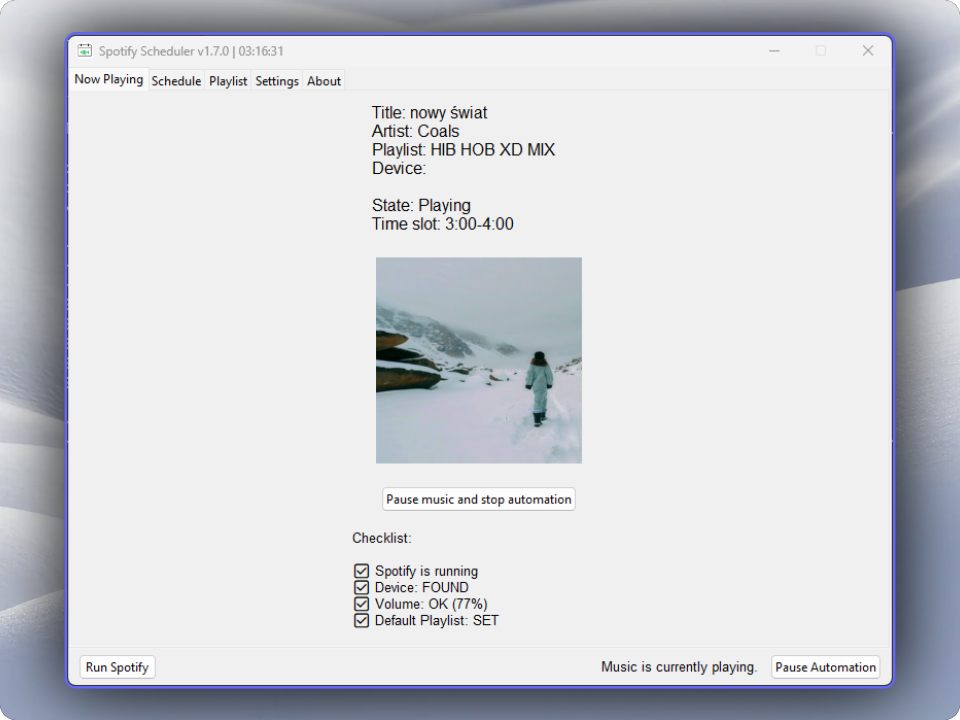
Easily plan and schedule music for any time of the day! Modify your schedule, choose a playlist from the user’s playlist library, or directly add a playlist using its ID or link. Perfect for managing music playback effortlessly, whether you’re creating a radio station for your school to play music during breaks or events, setting up a music schedule for your workplace, or planning playlists for specific times at venues.
Schedule
On the Schedule tab, pick any day on the calendar and create a custom schedule by adding timeslots and selecting a playlist. Next, you can copy your schedule to X days or to weekdays ahead.
You can also turn on Random queue for specific playlist. It’s an alternative to Spotify’s shuffle (which is not really random). When starting playback, the app will create a temporary playlist with random tracks from your playlist. Random queue doesn’t support local tracks!
If you're using Random queue, disable shuffle option in your Spotify client.
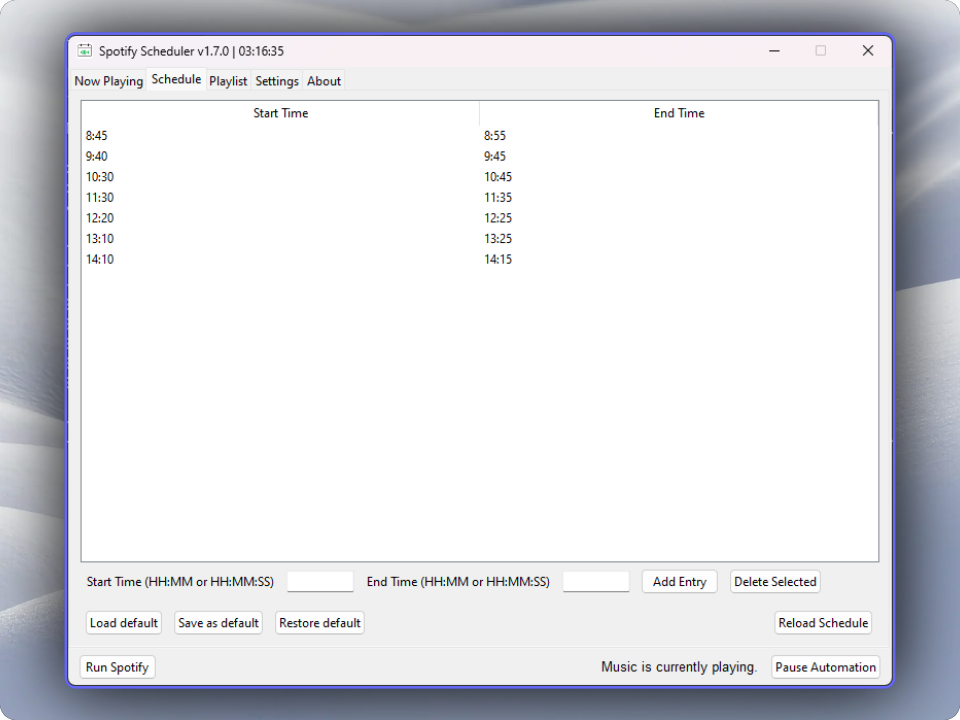
Recently played
In the Recently played tab, you can see your playback history.
Import/Export Playlists
In the Import/Export tab, you can export your playlists as a JSON file, then import them using that JSON file. Ideal for backup or sharing. Cover art is also exported.
[!IMPORTANT] Make sure you have a Spotify Premium subscription and are using Spotify’s desktop app - not web version!
Running on Windows
Set up Spotify App:
- Go to Spotify for Developers Dashboard and create a new app.
- Set the Redirect URI to:
http://127.0.0.1:23918. - Select Web API
Download an .exe file from the latest release here and launch it.
On the first run, you will be asked for CLIENT_ID and CLIENT_SECRET from Spotify. Then the OAuth popup should open
Running on Linux
Clone the repository (by the command below, or download it)
git clone https://github.com/sandrzejewskipl/spotify-scheduler.git
Inside the Spotify Scheduler directory, run this command:
chmod +x run.sh
Now, you can run this app by running:
./run.sh
This script will take care of making sure that Python3 and dependencies are installed.
On the first run, you will be asked for CLIENT_ID and CLIENT_SECRET from Spotify. Then OAuth popup should open.
Running script manually
Clone the repository (by the command below, or download it)
git clone https://github.com/sandrzejewskipl/spotify-scheduler.git
Install dependencies:
Make sure you have Python 3 installed. Then, download the required packages by running:
pip3 install -r requirements.txt
Make sure you have Python3-tk installed.
-
Linux:
sudo apt-get install python3-tk -
MacOS:
brew install python-tk
Set up Spotify App:
- Go to Spotify for Developers Dashboard and create a new app.
- Set the Redirect URI to:
http://127.0.0.1:23918. - Select Web API
Run this command from the command line in the same directory.
python3 spotifyscheduler.py
On the first run, you will be asked for CLIENT_ID and CLIENT_SECRET from Spotify. Then OAuth popup should open.
If you’re running script manually on Windows and you’re using cmd.exe (not Windows Terminal) remember to disable Quickedit to prevent program from freezing:
- Right-click the title bar of the Command Prompt window.
- Select “Properties” from the context menu.
- In the Properties window, click on the “Options” tab.
- Under the “Edit Options” section, uncheck the box that says “QuickEdit Mode.” Click “OK” to save your changes.
Settings
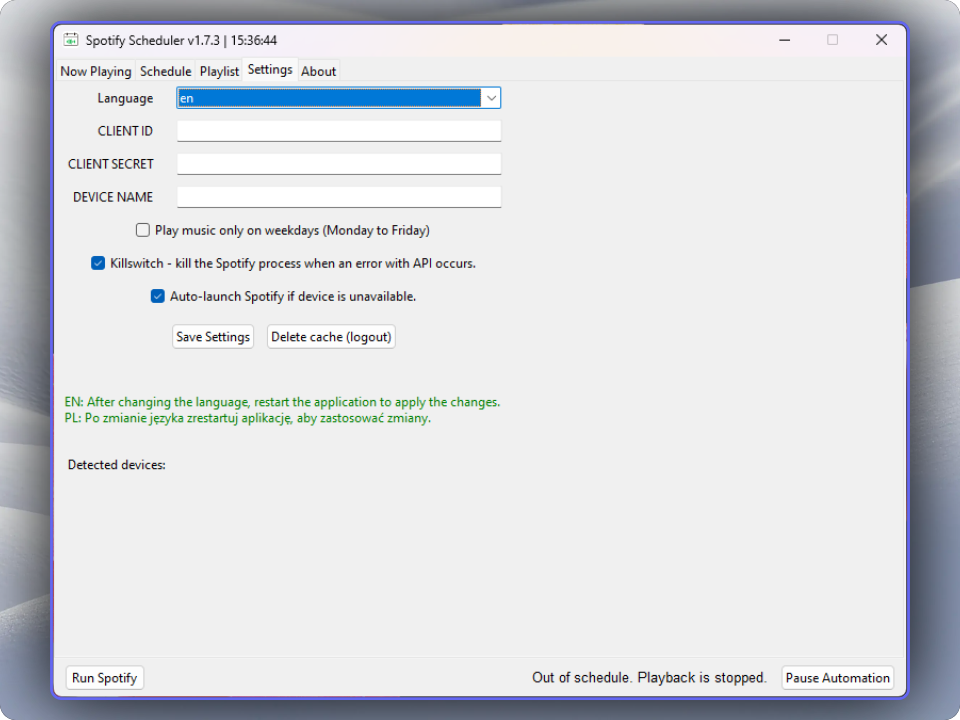
Supported languages:
- English (en)
- Polish (pl)
After changing the language, run the script again.
Device name - name (or part of it) of the device in Spotify API that will play music. You can find the device name in the bottom-left corner or select it from the list. It defaults to host’s name.
Play music only on weekdays - Music will only be played from Monday to Friday. Default: Off
Kill the spotify process - feature that kills the Spotify process(es) when an error with API occurs when pausing the playback. It prevents playing music out of schedule. Default: On
Auto-launch Spotify - feature that automatically launches Spotify if the device is not detected on the devices list. Default: On
Skip explicit songs - explicit content will be automatically skipped. Default: Off
For optimal stability and reliable playback automation, it’s recommended to enable both the Kill and Auto-launch Spotify features.
After changing CLIENT_ID or CLIENT_SECRET or wanting to change Spotify account (do it by logging in to another account in the browser), click Delete cache (logout) button.
App data files (config, schedules, playlists, logs and spotify token) are stored inside user’s data directory:
Windows: %localappdata%\spotify-scheduler
Linux: ~/.local/share/spotify-scheduler
MacOS: ~/Library/Application Support/spotify-scheduler